On September 15, 2025, Apple released macOS Tahoe. This shiny new OS packs some pretty cool features that most folks probably haven’t spotted yet. One of them is Apple Intelligence—Apple’s AI sidekick, which, ironically, depends on ChatGPT. It provides you with “Writing Tools” to rephrase, summarize, translate, and all that jazz.
Now, sometimes I want to share a news article with my partner while we’re in the same room. Instead of reading it out loud, I use the built-in text-to-speech feature called “Speak.” Just highlight the text, right-click, and pick “Speak” → “Start Speaking.” macOS 11 Big Sur included it, and after a few tweaks on Apple’s side, it works pretty well.
However, it has one gigantic flaw: it only works in some apps. Even apps explicitly for writing, like my favorite Typora, don’t have the “Speak” option.
That’s why I created a custom text-to-speech tool myself. Turns out, it’s surprisingly easy; you might be done and ready in less than 20 minutes. The big advantage: no ChatGPT needed. It uses macOS’ native voice models, so it’s faster and works even when you’re offline.
Table of Contents
Note
My macOS interface is in German, and so are all apps and their descriptions, buttons, and so on. I tried my best to translate the labels into English, but some translations might not be accurate.
tl;dr
- Click on this link to view the final shortcut
- Click “Receive Shortcut” and let it import itself into the Shortcuts app
- Right-click on any text and choose “Services” → “Vorlesen”
Abstract
So, we’re creating a way to have macOS’ native voices speak any text we highlight. You might think this is a perfect case for the Automator app, but it’s not. The magic app that is more powerful as you might think is called Shortcuts.
We’re going to create a custom shortcut. It’ll take in the selected text, determine its language, and then read it out aloud in your native language (or any other language you choose). Sounds easy? It’s because it is.
1. Create a Custom Shortcut
Use Spotlight (⌘ + space) to open it and enter shortcuts. Once it’s open, it’s important that you switch to the “Quick Actions” library on the left. After that, click on the + icon to create a new shortcut:

Since we created our shortcut in the “Quick Actions” library, our new shortcut starts with a module that receives whatever we select when we click it. I’d recommend changing the name since this is the one that will be displayed in the “Services” context menu
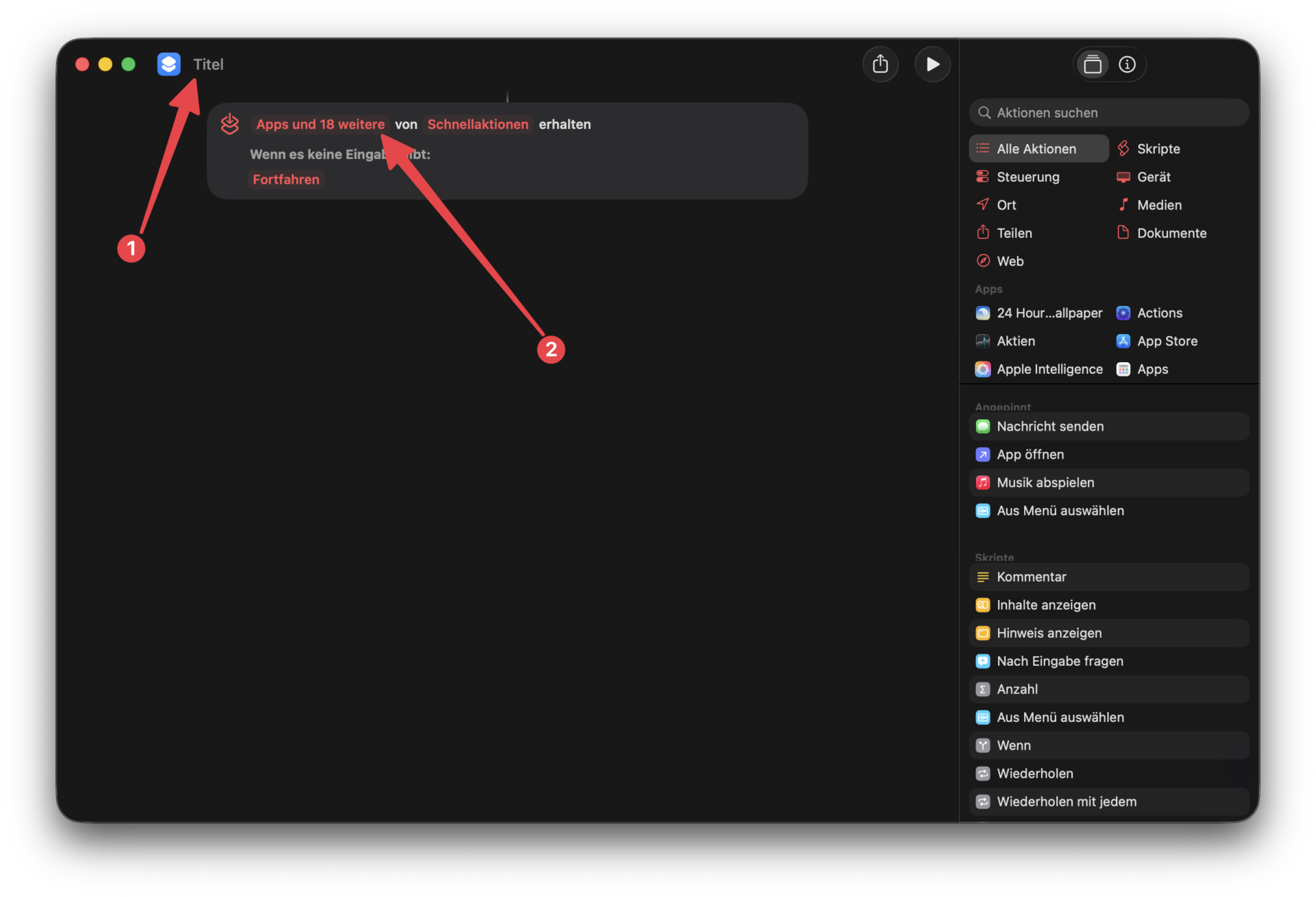
As you can see in the “2” marker, it points to the field type(s) from which the shortcut is supposed to receive the content. Click on it, unselect all items, and only keep “Text”, “Formatted Text”, and “Article” selected:
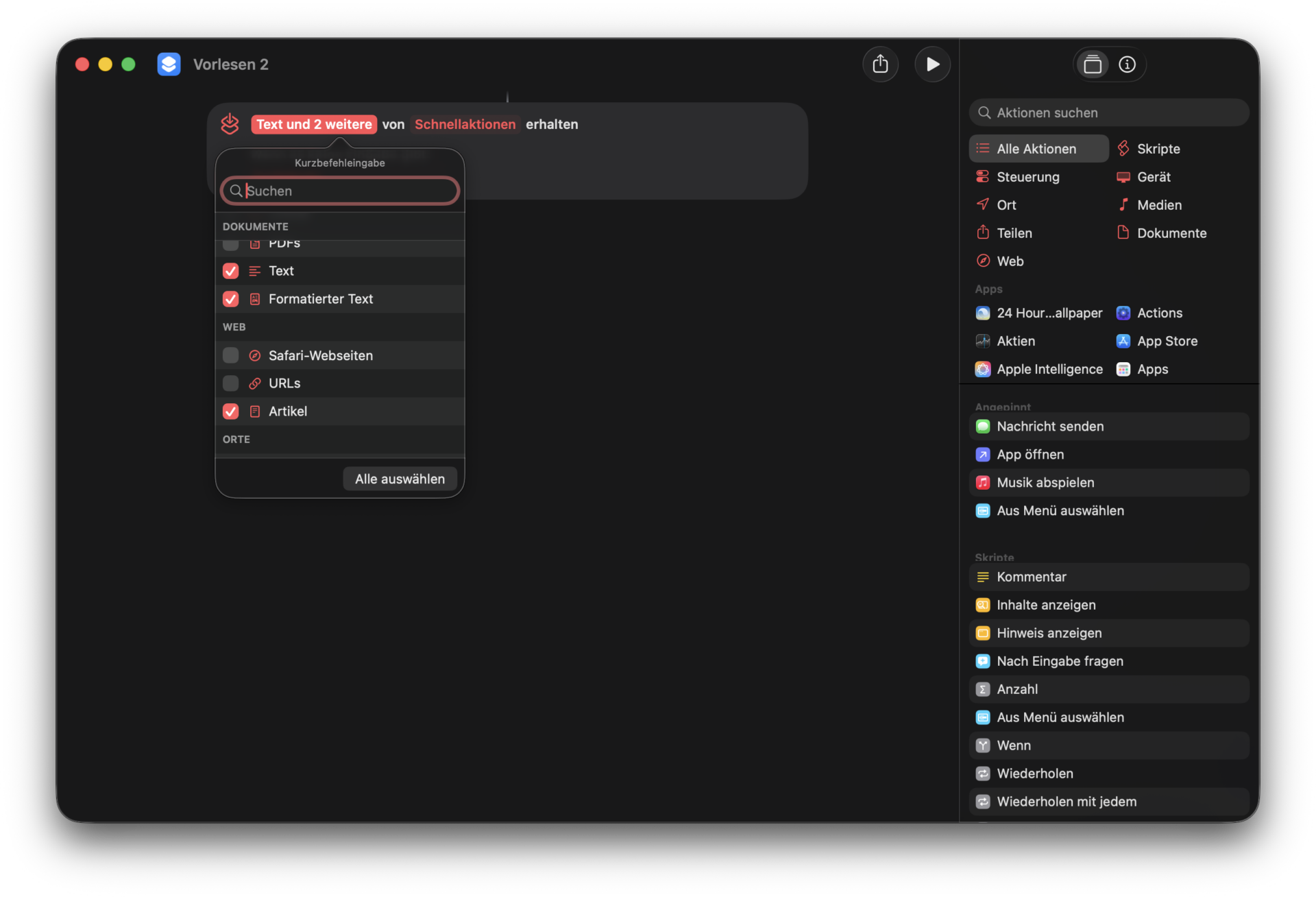
2. Prepare the Text-to-Speech Logic
This is the main part. We’re adding the logic—named “Actions” in the Shortcuts app—from the predefined Actions library.
The exact workflow needs the following Actions in the right order:
- “Add to variable”
- “Recognize language”
- An “If” condition, which creates two more modules:
- “If”: What happens when the condition we’re going to set in a minute is true.
- “Else”: What happens when the condition is not true.
- “End of If”: This will close the conditional logic. No changes needed.
3. Identify the Language
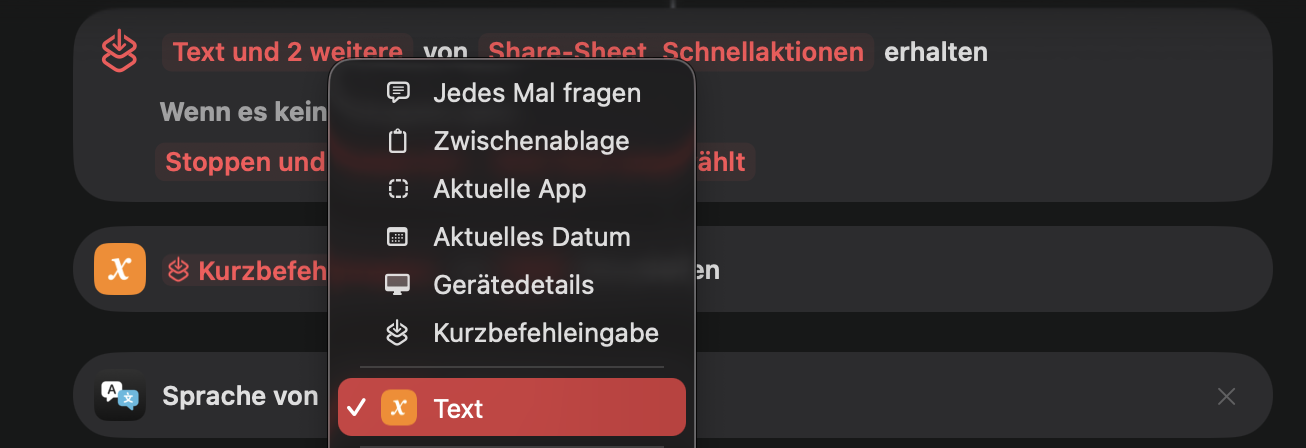
Now, we only have to add some “Actions” and change some values. To store the text we highlighted and want to read out, we’ll need to pass it to a variable via “Add to Variable”. Leave the first selection as “Quick Action content” and give the variable the name “Text”.
Now it’s time to identify the language of the text so our text-to-speech can work. Add the Action called “Recognize language” from the library and put it below the variable. Right-click into the placeholder and select our variable, Text:
4. Conditions
Since we want English to be read in English and, in my case, German to be spoken in German, we have to set this as the condition. The order of the input fields is a bit off, but it still makes sense: If Text, which is the identified language, is Englisch1, then is:
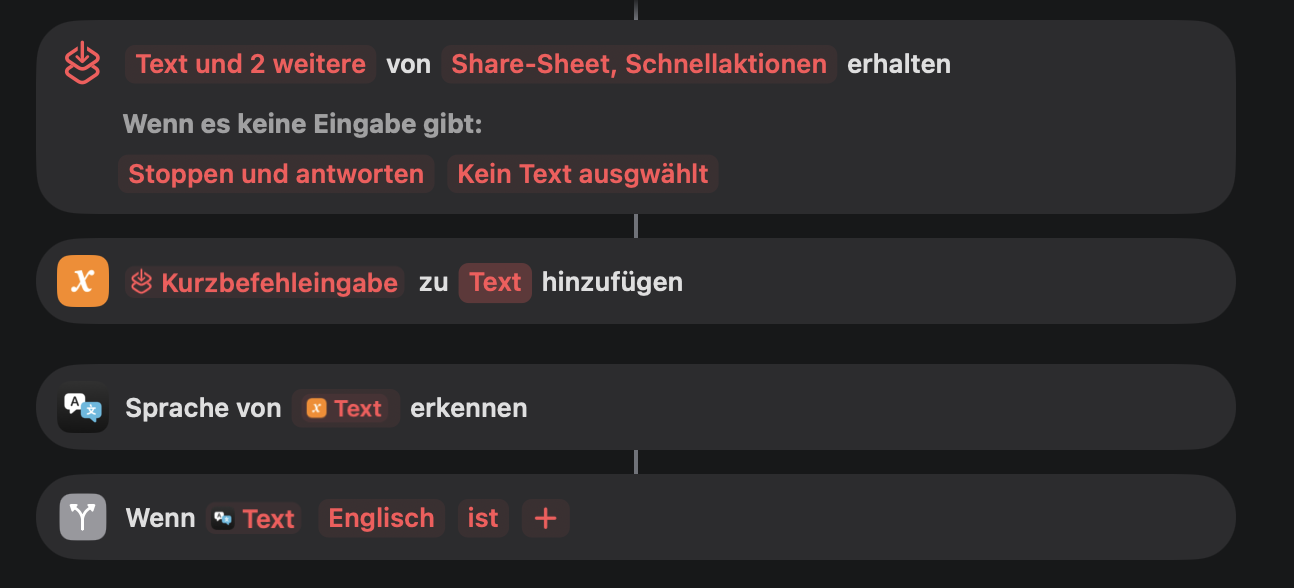
Now we have to define what actually happens if the text is in English. Move the Action “Read variable” inside the “If” condition and let it receive the value in our Text variable. If it doesn’t add this automatically, right-click the field and select it manually.
The next part is the actual text-to-speech part. Add the action “Speak Text”. Via the dropdown icon, you can select which language should be spoken, the voice, the tempo, and so on. Since this condition is set to Englisch, we select a German voice with the input of our Text variable:
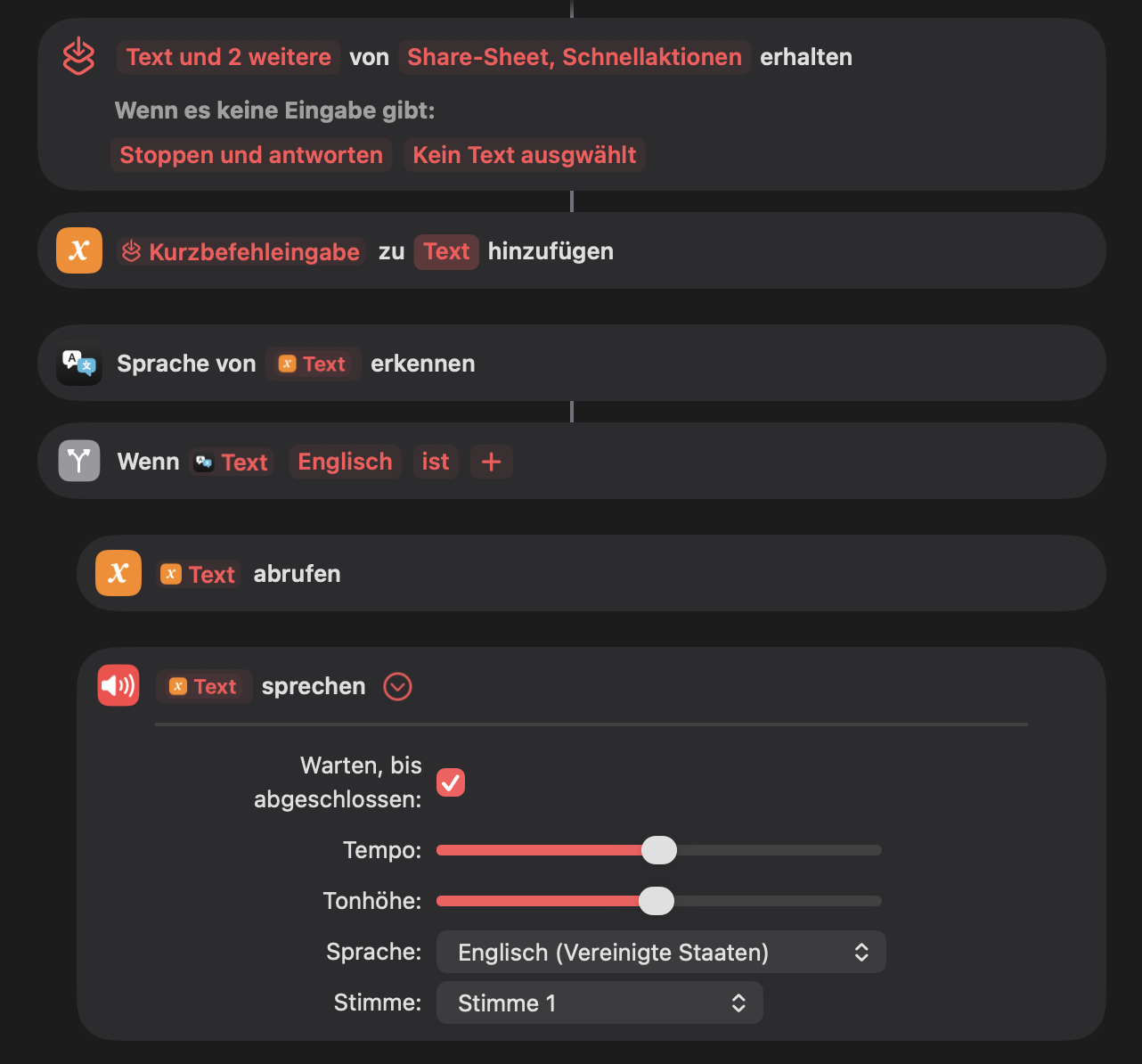
The “Else” condition works the same way. If it’s not Englisch, it’ll read it in German. Makes sense, right? Use the variable again so you can add Text into the “Speak text” action, and that’s it.
5. Save as Service
Aaaaaand we’re done. No, seriously, it’s that simple. Save your shortcut and make sure it’s in the “Quick Actions” library as shown before. After that, test it.
Select any text, for example, in your browser or in a writing app, and choose your new shortcut name under “Services”. The text will now be read in the right language and with a great voice model.
Here’s the entire workflow in one image, although in German:
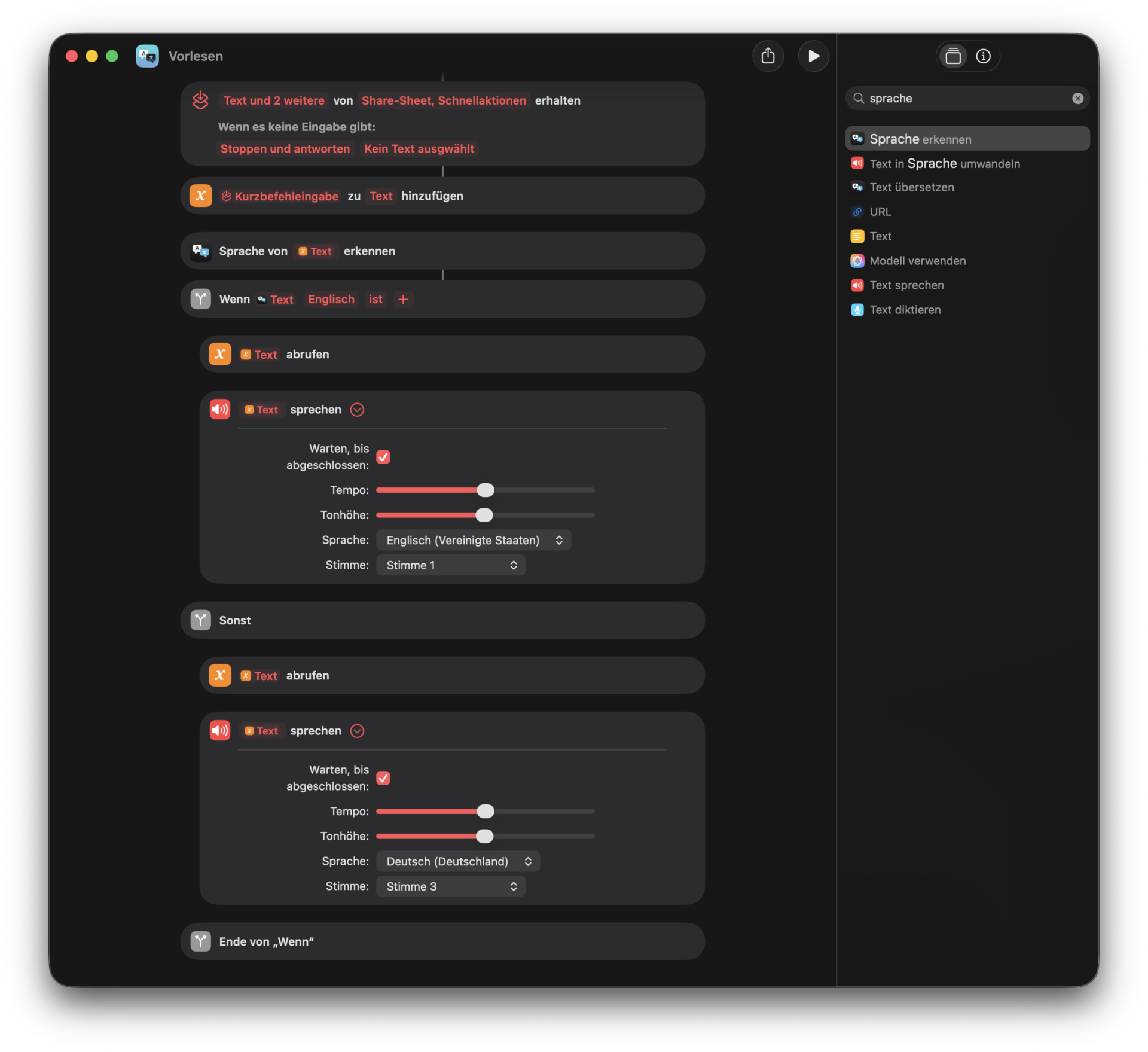
If you want to add more languages, you can, of course, add more conditions, but I personally only need English and German. No API is used, so it runs solely on your macOS, and you’re not limited by OpenAI’s LLM rate limits.
Footnotes
- Since my macOS is set to German, the languages are also Germanized. Instead of
English, I need to addEnglisch. Keep this in mind. ↩︎

![Fixing “Apple could not verify [some app] is free of malware that may harm your Mac or compromise your privacy.” Move to trash? I don’t think so](https://blog.kolja-nolte.com/wp-content/uploads/macbook-pro-css.jpg "Click to show full size for Fixing “Apple could not verify [some app] is free of malware that may harm your Mac or compromise your privacy.” Move to trash? I don’t think so")