
If you’re seeing the error “Failed to read servers from mcp.json” in your JetBrains IDE, don’t listen to the prompt telling you to disable the GitHub Copilot plugin. It’s a classic overreaction. The error is caused by a faulty setup of an MCP file and takes thirty seconds, which is less time than it takes for WebStorm to index a medium-sized project.
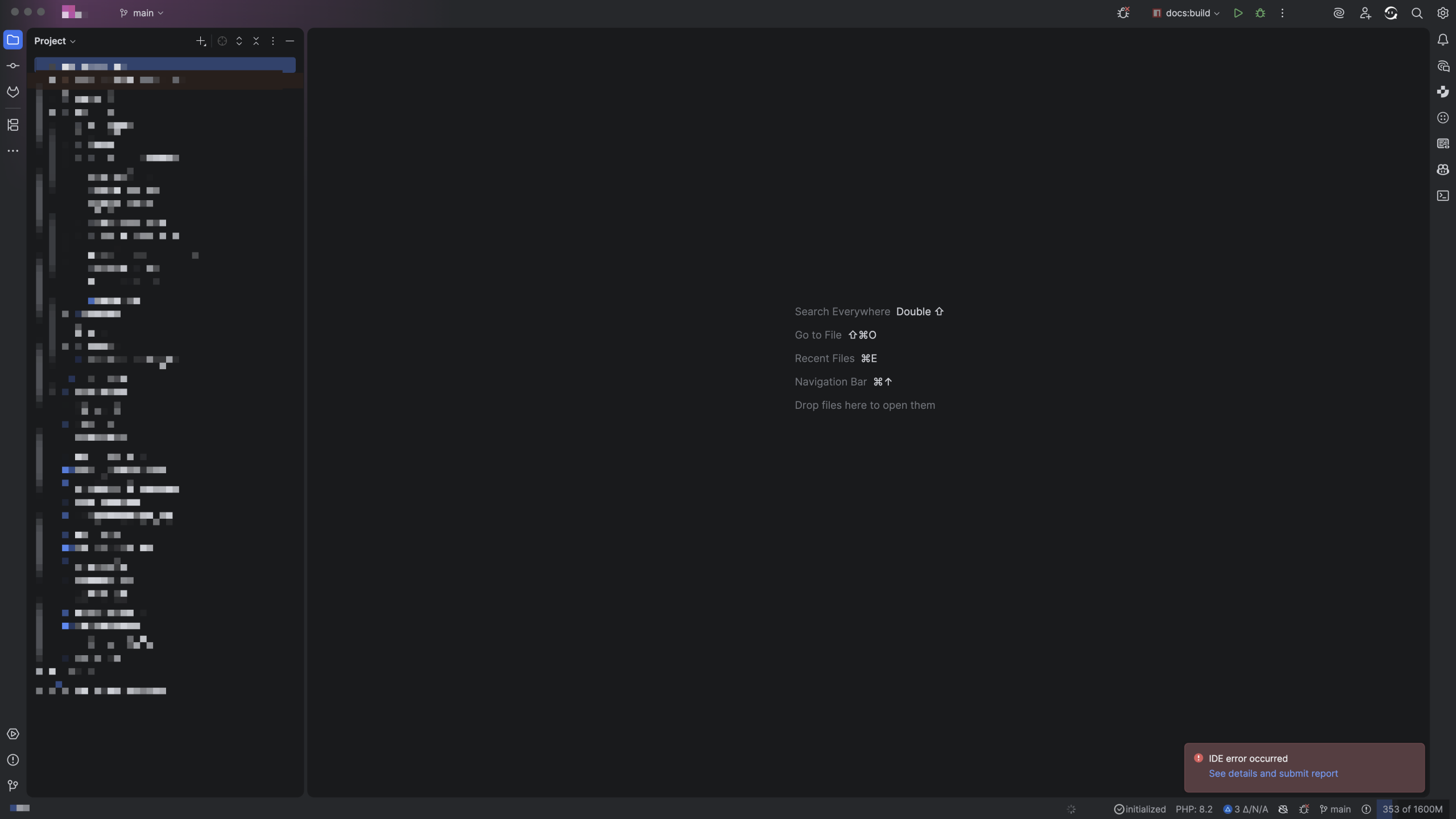
It all starts with this vaguely defined error in the bottom right corner when you launch any JetBrains IDE that has the GitHub Copilot plugin installed and not properly configured, just like the nasty sign-in error:
It becomes a lot clearer once we click on the “See details and submit report” link:
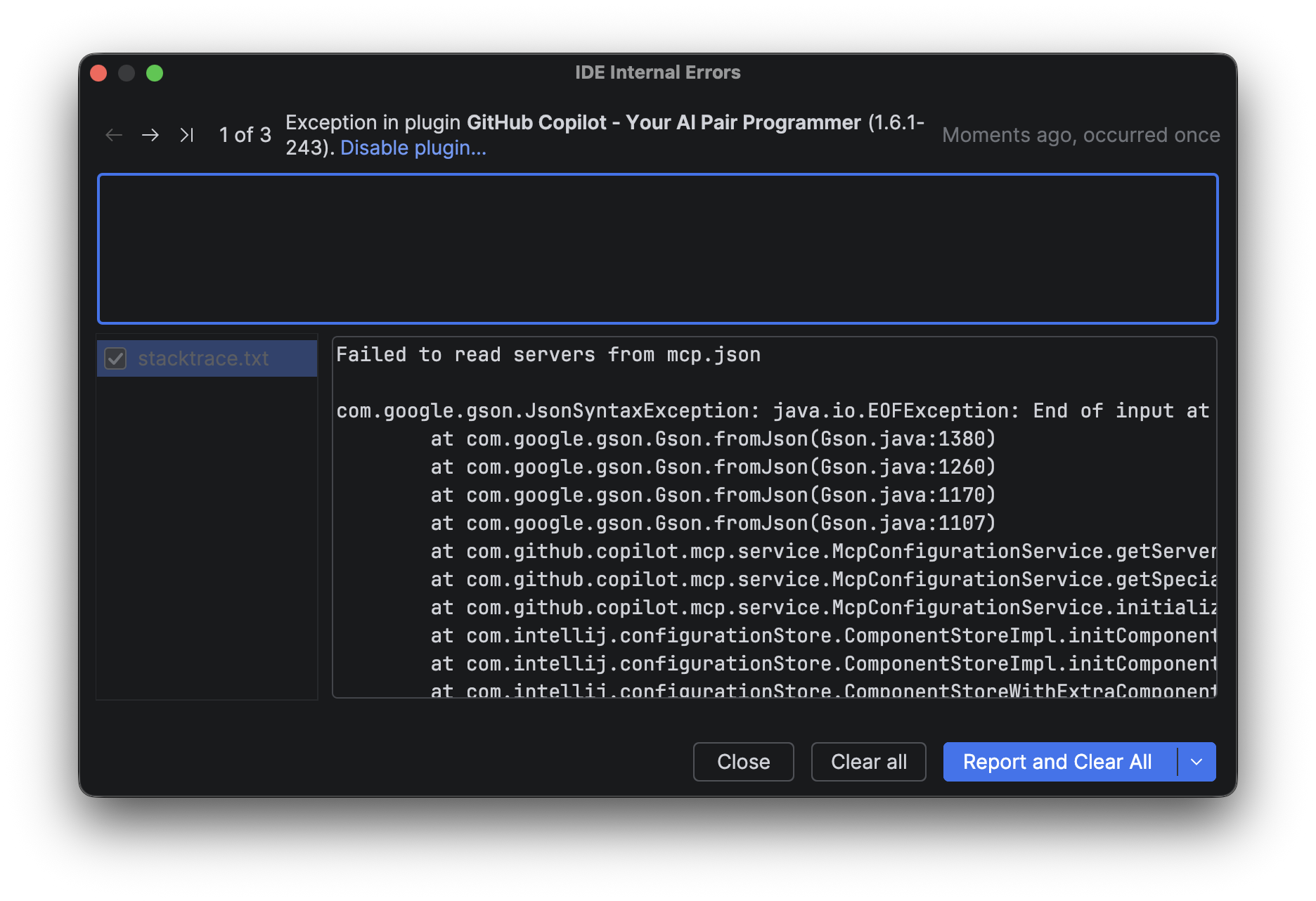
Aha! mcp.json. JSON is a fragile format that throws a tantrum if a single bracket is missing. Here is how to fix the “Failed to read servers from mcp.json” error without losing your mind.
tl;dr
# Only for macOS

echo '{}' > '~/.config/github-copilot/intellij/mcp.json'1. Find the Settings
Open your settings. On macOS, it’s ⌘ + ,. If you’re on Windows, go to File > Settings and try not to think about your life choices.
2. The MCP Search
Search for “mcp” in the top-left bar. It’ll highlight the path Tools → GitHub Copilot → Model Context Protocol. You’re looking for a button labeled “Configure”.
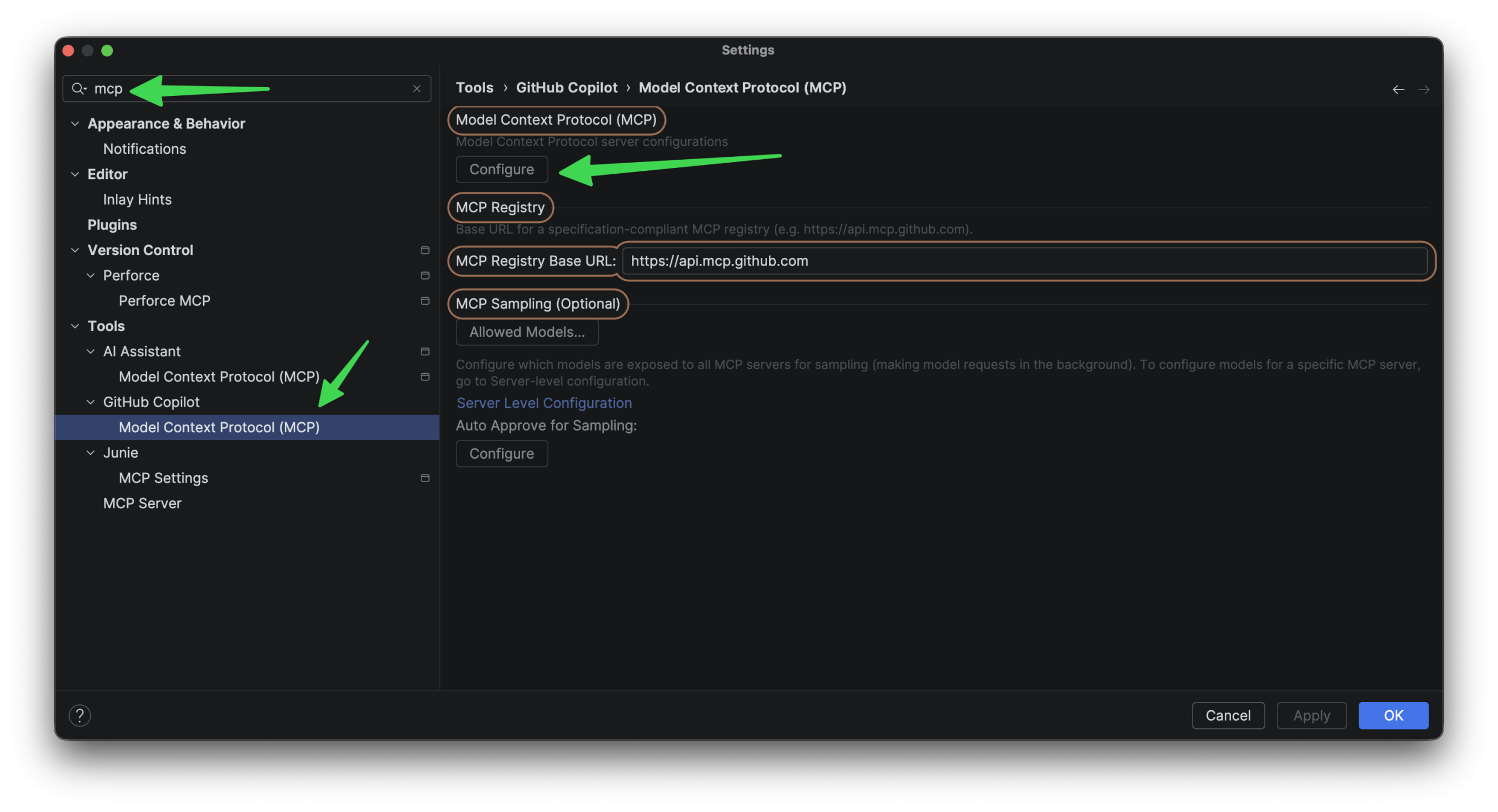
3. Fixing the “Failed to read servers from mcp.json” mess
Once you click Configure, the IDE will open mcp.json:
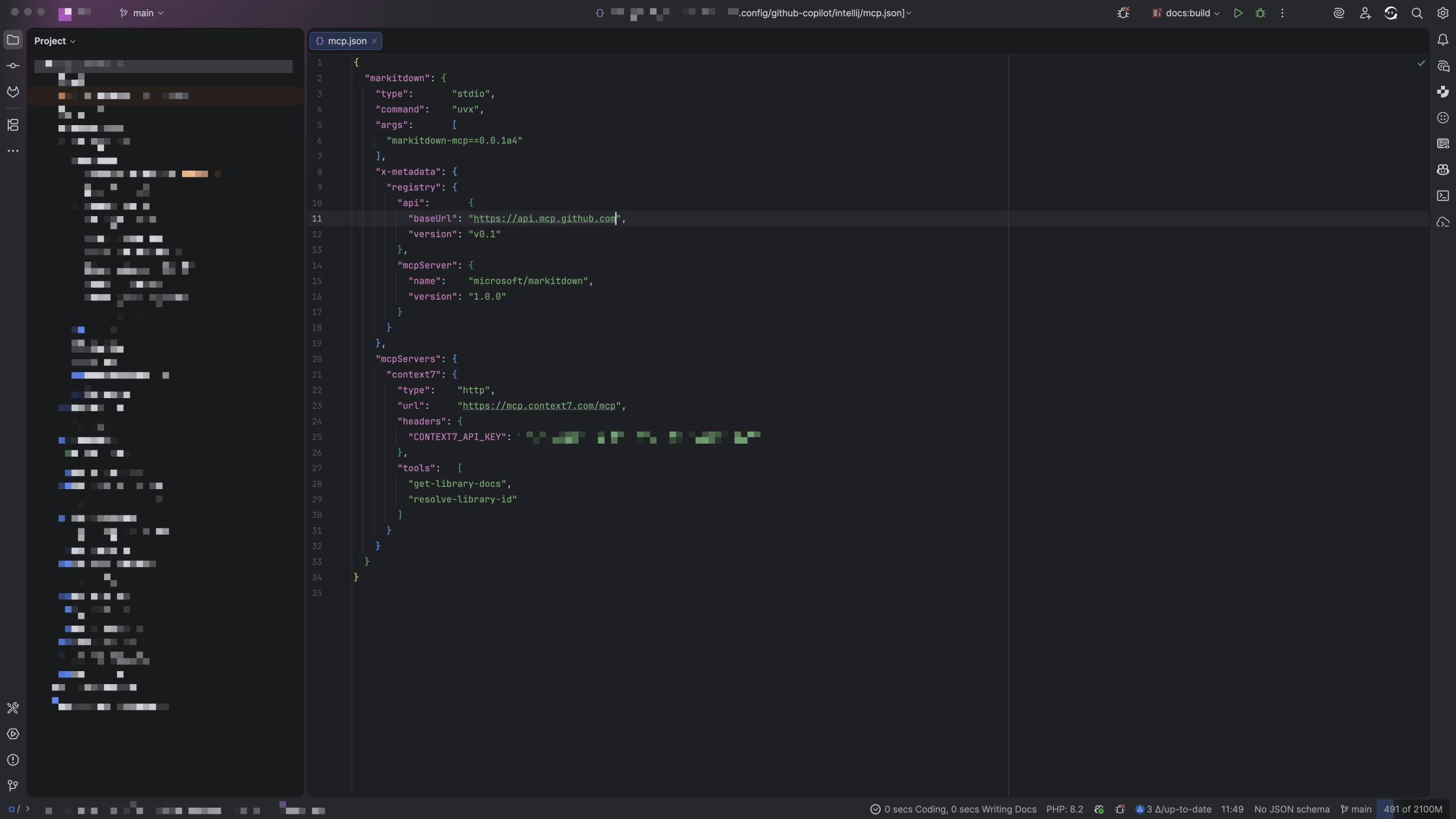
mcp.json might look. Or it might just be emptyIt’s broken because:
- You’re bad at syntax: You left a trailing comma or missed a closing
}. Look for the red squiggly lines – your IDE is literally pointing at your mistake. - The file is a void: If the file is empty, JSON panics. If you aren’t actually using MCP servers and just want the pop-up to die, paste this in:
{}That’s it. Two curly braces to satisfy the machine.
4. Restart
Restart the IDE. The “Failed to read servers from mcp.json” error is dead. Now you can get back to pretending you don’t use AI to write your CSS.